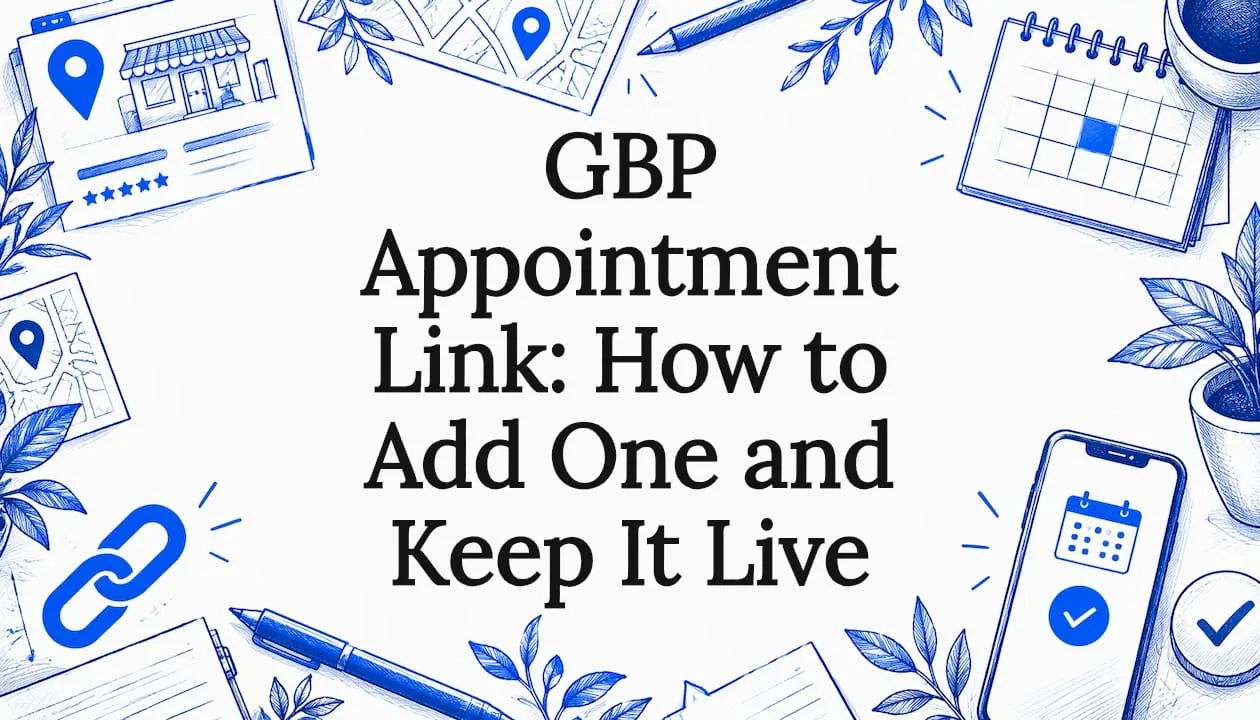
A Google Business Profile appointment link puts a booking path on the listing homeowners see in Search and Maps. Adding it takes a few minutes. Keeping it live, and sending it to a page that turns a tap into a booked job, is where most contractors lose the benefit. This guide covers the steps, Google’s rules for the URL, the errors that block links, and what the destination page needs so the link earns appointments. If your phone rings while your crew is on a roof and nobody picks up, the page behind the link matters as much as the link.
TL;DR
- An appointment link is a URL you add under Booking in your Business Profile. Google allows up to 10 links per category for actions such as booking.
- Your profile must be verified, and not every business type is eligible, so the Booking option may not show for you.
- The URL must lead to a dedicated page where the customer can finish the action. Social media pages, messaging links, app store links and link shorteners are not accepted.
- Google re-checks links automatically, so a page that is offline, behind a login or blocking crawlers can cause the link to disappear.
- The link only books jobs if the page behind it is fast, mobile-friendly and answered by a system that never misses a lead.
Table of Contents
- What an appointment link does on a contractor’s profile
- Can your business add one?
- How to add the link, step by step
- Google’s rules for the URL
- Why a link goes missing, and how to fix it
- What the link should point to
- What happens after the tap
- How Coastal Connect handles the link and what sits behind it
- Our perspective
- FAQ
- Sources
What an appointment link does on a contractor’s profile
A Business Profile can carry links that let customers act straight from Google Search or Maps. Google’s help page lists booking an appointment among the actions, alongside reservations and orders. For a plumber, HVAC company, electrician or roofer, the useful one is booking: a homeowner with a leaking water heater searches, sees your profile, taps the link and lands on a page where they can request a time.
That short path matters because the person searching usually needs help now and is comparing two or three profiles. The profile with the clearest next step gets the tap. Calls and directions are the other actions on the listing. A booking link gives the customer who would rather not call a way to reach you, including after hours when you cannot pick up.
Two things are easy to confuse:
- The booking link is a URL you type into your profile. It shows up as a link in your listing.
- The blue Book button is a call-to-action button that appears only through a provider with a direct integration with Google. Google’s community guide says a manually added booking link does not generate that button. It also says that when an integrated provider is connected, the button should appear within two business days.
Most contractors start with the manual link, and that is fine. It still gives customers a clear route from your profile to your scheduling page.
Can your business add one?
Before you hunt for the option, check two conditions from Google’s business links policies:
- Eligibility varies. Not every business is eligible for business links. It depends on the business type and the country or region.
- Verification is required. The profile must be verified before you can add a link. Once it is verified and Google approves the edit, the change is published on Search and Maps.
If you see no Booking option at all, verification or eligibility is the first place to look. A profile that was suspended or never fully verified will not show it. If yours is suspended, our guide to fixing a suspended Google Business Profile with one appeal walks through the recovery.
A complete profile also gives the link more to work with. Accurate categories, hours, service areas and photos make the tap more likely. Our five field-tested profile completeness moves cover the fields contractors skip most often.
How to add the link, step by step
The path below follows Google’s help page on managing local business links. Menus shift from time to time, so use the labels as a guide.
Step 1: Open your profile
Sign in with the Google account that manages the profile, then search for your business name on Google. Managers see an edit menu on the listing. You can also do this from Google Maps by choosing Edit profile.
Step 2: Find Booking
In Google Search, select Booking. In Maps, edit the profile and look for the transaction type that matches the action. If Booking does not appear, go back to the eligibility and verification checks above.
Step 3: Choose the right destination first
Before you paste anything, decide where the link will go. This is the step that most often goes wrong. Pick one specific page that lets a homeowner request a visit: a booking page, a scheduling form or a service-request page. Do not use your home page unless the booking form sits on it. A customer who has to hunt for the next step leaves, and a page that cannot complete the action can be rejected.
Step 4: Add the link
Select Add link, or Add another link if you already have some. Enter the full URL, starting with https://, and select Save. Copy it from your browser’s address bar rather than retyping it, so no stray spaces or symbols slip in.
Step 5: Set your preferred link
If you have more than one link, you can mark one as preferred. Make it the page with the shortest path to a booked job.
Step 6: Test it as a customer would
Open your profile on your phone, in a private browser window if you can, and tap the link. Confirm that it opens the right page, the page loads fast on cellular data, the form works, and a test request reaches you. Most of your customers will do this on a phone, often in a hurry.
Google’s rules for the URL
Google’s business links policies set clear limits. Knowing them in advance saves a rejected edit.
| Rule | What it means for a contractor |
|---|---|
| Dedicated landing page | The link must lead to a page for your business, or for a specific location if you have several, where the customer can complete the action. |
| No social, messaging, app store or shortener links | A Facebook page, a WhatsApp link, an app store listing or a shortened URL will not be accepted. |
| Maximum of 20 links per transaction type | Plenty of room, but you rarely need more than one or two. |
| No duplicates | Adding the same URL twice returns a “Business link already exists” message. |
| One link per domain | A second link on the same domain returns “Domain already exists”. This includes conflicts with links added by third-party providers on that domain. |
The one-link-per-domain rule matters for contractors with several services. A plumber who wants separate links for drain cleaning and water heater replacement on the same site cannot add both. Pick the page that captures the most requests, and let that page route visitors by service.
Multi-location companies, such as an HVAC business serving both Rhode Island and Massachusetts, should point each profile to its own location page. Google’s wording is explicit that a multi-location business links to a specific location’s page.
Why a link goes missing, and how to fix it
Google checks business links at most once a day with automated tools and manual review, and it may remove links that break the rules or cannot be crawled. Its crawlability policy says the page should load fully, return a 200 OK status, and not block Google’s link-verification crawler. It should also avoid CAPTCHAs, logins, IP blocking, rate limiting and geoblocking.
Here is how that shows up in practice:
- The Booking option is missing. The profile is not verified, or the category or country is not eligible. Verify first, then check again.
- The link is rejected as malformed. Look for spaces, backslashes, odd symbols or a repeated “http://”. Paste a clean URL copied from the browser.
- “Domain already exists.” A link on the same domain is already on the profile, possibly one added by a third-party provider. Edit that link instead of adding another.
- The link appears, then disappears. The page was probably unreachable when Google re-checked it: offline, behind a login, blocking bots or showing a CAPTCHA. Ask whoever hosts your site to confirm the page returns a normal 200 response without a firewall rule that blocks Google. Then add the link again.
- You cannot delete a link. Links added by third-party booking providers cannot be removed manually from your profile settings. Google’s help page says you must use the provider’s opt-out link, support form or account portal, and that providers must process opt-outs within five business days. If they do not, you can report a violation.
The common thread is the destination page. A site that goes down during a storm rush, a form that sits behind a login, or a firewall set too tightly can quietly strip a link that took you minutes to add. That is a reason to run the page on a site you control and keep it healthy, not to treat the profile as a one-time setup.
What the link should point to
A link that lands on a slow, cluttered page wastes the tap. Think about the person on the other end: a homeowner standing in a wet basement or a cold house, holding a phone. They need three things within seconds: proof you serve their town, a simple way to say what is wrong, and confidence someone will respond.
A good destination page for a contractor has:
- A short request form or scheduler with only the fields you need: name, phone, address or ZIP, service needed, preferred time.
- A visible phone number that is tap-to-call, for those who want a person.
- Service area and trade clarity, so a homeowner in Cranston knows you work there and a roofer’s page does not read like a landscaper’s.
- Proof: recent reviews, licensing and a few real job photos.
- Fast loading on mobile, since Google also needs the page fully loaded to verify it.
Our examples of contractor contact pages that turn visitors into calls show how these elements fit together on a single page.
If you collect deposits or payments when a job is booked, a hosted checkout link on the confirmation step keeps the process in one flow. Setup steps for payment links in GoHighLevel show one way to wire that up.
What happens after the tap
A booking link creates a lead. The lead becomes revenue only if someone responds quickly. The usual failure is not the profile. It is the hour after the form is submitted, when the owner is under a sink and the request sits unanswered.
This is where the work behind the link counts:
- Instant acknowledgment. A text that confirms the request and says when to expect a call keeps the homeowner from tapping the next profile.
- Calls that never go to voicemail. Many customers still call after viewing the profile, so inbound calls need an answer around the clock.
- Reviews after the job. Reviews strengthen the profile that sends people to your booking page in the first place.
For a closer look at how profiles drive calls in specific trades, see our guides for plumbers claiming their profile and HVAC companies building a profile for trades. If your hours change around the holidays, the holiday hours guide for contractors keeps the profile accurate when emergency calls spike.
How Coastal Connect handles the link and what sits behind it
The link is one small piece of a lead-capture system. We build custom websites for contractors in Rhode Island and Massachusetts that work as lead generation engines, so the page your profile points to is designed to turn a visit into a booked job. Our websites that book jobs are built for exactly that.
On the profile side, our local SEO and Google Business Profile work covers the listing itself. Behind both, our missed-call text-back and CRM and AI voice agent handle inbound calls 24/7, so a lead from your profile is acknowledged even when your crew is busy. Our review system sends automated review requests after the job.
Plans are published on our pricing page: Foundation at $597 per month, Growth at $1,297 per month and Scale at $2,497 per month. Extra locations start from $299 per month, and an AI employee on Growth is $199 per month.
Our perspective
Most contractors we talk to treat the appointment link as a box to tick. They paste in the home page, see it saved, and move on. Then the link sits there, and a quarter of the people who tap it never hear back.
We see the profile, the website and the follow-up as one system. The profile earns the tap, the page earns the request, and the response earns the job. If any one of those three is weak, the other two are working for nothing. That is why we build them together for trades in Rhode Island and Massachusetts, run by a local team that knows the towns we serve.
Our approach is to make the link point to a page built to book, and to make sure every request and every call gets answered quickly, day or night. When that happens, the profile stops being a listing and starts being a booking channel.
Tyson
FAQ
Can I use my Facebook page or a messaging link as the appointment link?
No. Google’s policies exclude social media sites, messaging links, app store links and link shorteners. Use a dedicated page on your own website where the customer can request or schedule the service.
Why is there no Booking option on my profile?
The usual causes are that the profile is not verified, or that your business type or region is not eligible for business links. Google says eligibility varies by business type and country or region. Complete verification first, then check the profile again.
Why did my appointment link disappear?
Google re-checks links at most daily, and it may remove a link when the page is offline, behind a login, blocking its crawler or showing a CAPTCHA. Make sure the page loads fully and returns a normal 200 response, then add the link again under Booking.
Do I get the blue Book button by adding a link?
Not by itself. Google’s community guide says the blue button appears only with a provider that has a direct integration with Google. A manually added link still shows in your listing as a path to your booking page.
Sources
- Manage your local business links, Google Business Profile Help
- Business links policies and guidelines, Google Business Profile Help
- How to add, remove and edit booking links, Google Business Profile community guide
- Set up payment links with GoHighLevel