
To set holiday hours on your Google Business Profile, open your profile, go to Edit profile, then Hours, and add special hours for each date: mark the day closed or enter the hours you will actually answer the phone. Do it a week or more before the holiday, and do it even if you plan to work your normal schedule. For a plumber, HVAC tech or electrician, this small edit decides whether a homeowner with a dead furnace calls you or the next name on the map.
This guide covers the exact steps, the rules Google applies, the mistakes that make holiday hours display wrong, and what to do about the calls that still come in when your office is dark.
TL;DR
- Set special hours in advance for every holiday you care about. If you skip them, Google may show a warning that your hours might differ.
- Special hours fit changes of 6 days or fewer. Longer closures need the Temporarily closed status.
- Each special hours entry can’t run past 24 hours, so an overnight emergency shift must be split into two entries.
- Update at least a few days ahead, because edits are reviewed before they go live.
- If you take emergency calls on a holiday, say so in your hours and make sure someone or something answers.
Table of Contents
- Why holiday hours matter more for contractors
- What Google does when you don’t set holiday hours
- How to set holiday hours step by step
- The rules that trip people up
- A holiday hours plan for plumbing, HVAC, electrical and roofing
- What to do about calls when you’re closed
- Keep the rest of the profile in step
- Perspective: what we see with Rhode Island and Massachusetts contractors
- Getting help with your profile
- Troubleshooting holiday hours that look wrong
- FAQ
- Sources
Why holiday hours matter more for contractors
A restaurant that shows the wrong Thanksgiving hours loses a dinner reservation. A contractor with the wrong hours loses a job worth far more, and often one the customer needed that day. Burst pipes, no heat in a New England December, a tree through a roof after a nor’easter: these calls cluster around holidays because that is when people are home and systems are running hard.
The customer searching at 7 p.m. on a holiday is not browsing. They are looking at the map pack, scanning for “Open now,” and calling the first business that looks reachable. If your profile says closed, or shows a vague warning, you are out of that decision before it starts.
There is a second cost. When your profile displays hours that turn out to be wrong, people call, get voicemail and leave a one-star review about it. Accurate hours protect your rating as much as your phone.
What Google does when you don’t set holiday hours
Google keeps a list of holidays. On those dates, a warning can appear on your Business Profile telling users your hours might differ. Google’s own help page recommends setting special hours in advance to avoid it.
That advice holds even if you are open as usual. Entering your normal hours as special hours confirms to searchers that the information is current. A profile with a “hours might differ” notice makes a cautious homeowner skip you and call someone else.
For Massachusetts, the state’s 2026 holiday calendar, as listed by CalendarLabs, includes dates a national checklist would miss, such as Patriots’ Day on April 20. Thanksgiving falls on November 26 and Christmas Day on Friday, December 25. If you work across the Rhode Island and Massachusetts line, check which local holidays your crews and customers actually observe, then decide each one on its own.
How to set holiday hours step by step
Google’s special hours instructions change slightly over time, and the menu names shift between Search, Maps and the app. The route below is the common one.
- Sign in to the Google account that manages the profile. Search your business name while signed in, and the management panel appears above the results. If you manage several locations, open the Business Profile manager and pick the right location first.
- Choose Edit profile, then Business information, then Hours. In the desktop view, you will find a Special hours or Holiday hours section.
- Pick the date. Google may suggest upcoming holidays. You can also add any custom date, such as the day your crews attend a training or an annual shop closure.
- Mark it closed, or enter the hours. If you are closed, mark it closed. If you are working, type the real start and end times instead of leaving “Open as usual”; the ReplyOnTheFly guide and a Google community thread both point to manual hours as the fix when a holiday displays inaccurately.
- Save and check. Search for your business in a private browser window a few days later and confirm the holiday shows what you entered.
The same flow works for a one-off change, such as a half day before Thanksgiving, because special hours override your regular hours only on that date and leave the weekly schedule alone.
Setting it in the Google Maps app
If you are standing in a truck, the mobile route works too. Open the app, go to your business profile, select Edit profile, then Business hours, and use the special hours option. The fields are the same: date, closed or open, and times. Don’t leave this for the morning of the holiday, for the reasons below.
The rules that trip people up
Most holiday hours problems come from five rules in Google’s documentation.
Special hours are for short changes
Use special hours for adjustments or closures of 6 days or fewer. For 7 days or longer, or indefinite closures, Google directs you to mark the business as temporarily closed. A roofing company that shuts down for a two-week winter break should use that status, not a string of special hours entries.
One entry cannot cross midnight
Special hours can’t exceed 24 hours. If you run an emergency shift from 7 p.m. on Christmas Eve into 5 a.m. on Christmas Day, enter two lines: one that ends the first day, and one starting at midnight on the second. This matters for 24-hour emergency plumbing and HVAC outfits.
Your main hours must be set to open with main hours
Google states that special hours display correctly only when your main hours are set to “Open with main hours.” If the profile is set to open with no main hours, special hours may not appear as intended. Many contractors who list “by appointment” or leave the schedule blank hit this without knowing it.
Review takes time
Google’s systems check edits before they go live, so a change made the morning of a holiday may not show in time. For Thanksgiving and the Christmas week, make the edit at least several days ahead. We suggest the first week of November for both.
Anyone can suggest edits
Google Maps lets users suggest changes to hours, and verified owners have been given new tools to deal with suggested edits as Google tightens how it handles them. Check your profile after holidays and look for hours you did not enter. A wrong suggestion that sticks can do the same damage as forgetting to update.
A holiday hours plan for plumbing, HVAC, electrical and roofing
The hard part for a contractor is not the click path. It is deciding what “open” means. Pick one of these three modes per holiday and write it into your profile.
| Mode | What to enter | Best for | What must be true |
|---|---|---|---|
| Closed | Mark the day closed | Offices with no on-call crew | Calls still get a message and a way to reach you the next business day |
| Emergency only | Enter the hours you answer, and say so in your business description or a profile update | Plumbing, HVAC, electrical with on-call techs | Someone or something actually answers during those hours |
| Normal hours | Enter your regular hours as special hours | Landscaping crews, snow removal, storm response | Your crew schedule really matches |
Be honest in the entry. If you are “open” at 8 p.m. on Christmas but the phone rings out, you convert a customer into a reviewer. A closed profile with a working text-back beats an open profile with voicemail.
A sample calendar
This is a planning template, not a rule. Adjust it to your crews.
- Early November: Set Thanksgiving (November 26) and the Friday after. Decide if you are on call.
- Mid-November: Set Christmas Eve, Christmas Day (Friday, December 25) and New Year’s Eve and Day.
- January: Set Martin Luther King Jr. Day and Presidents’ Day, which Massachusetts lists as Washington’s Birthday.
- Spring: Add Patriots’ Day on April 20 if you operate in Massachusetts, and Memorial Day.
- Summer and fall: Add Juneteenth, July 4, Labor Day, Columbus Day (Indigenous Peoples’ Day in some places) and Veterans Day.
Do this once in a calendar reminder and it becomes a ten-minute task each year.
What to do about calls when you’re closed
Hours on a profile only tell people when to expect you. They do not capture the lead when someone calls anyway. Three layers cover the gap.
1. A clear voicemail or a live answering option. The greeting should match your profile: say whether you take emergencies, and give the number or the time you return.
2. Missed-call text-back. When a call goes unanswered, an automatic text goes out within seconds asking what is wrong and promising a response. The customer is no longer stuck on a dead line, and you get the job details in writing. We build this as part of our missed-call text-back and CRM setup.
3. Call answering that works at 2 a.m. An AI voice agent can pick up inbound calls around the clock, collect the address and problem, and pass it along according to rules you set. A website chat widget does the same for people who would rather type.
The point is consistency. Your profile, your website and your phone should all say the same thing on the same day.
Keep the rest of the profile in step
Holiday hours are one field among several. A homeowner comparing three plumbers sees your rating, your photos, your posts and your hours together. A few habits help.
- Match your website. If the profile says closed on Thanksgiving and your site banner says 24/7 service, one of them is wrong. Put a short holiday notice at the top of the homepage and on your contact page.
- Post an update. A short Google Business Profile post such as “Emergency service available Christmas Day, call us” reinforces the hours field.
- Ask for reviews after the holiday rush. Emergency jobs produce strong reviews when the tech shows up on a day nobody wants to work. Send the request while the relief is fresh. Our review request automation handles that after each job.
- Check every location. If you run more than one service area, each profile needs its own entries. Missing one is the most common slip with multi-location contractors.
Perspective: what we see with Rhode Island and Massachusetts contractors
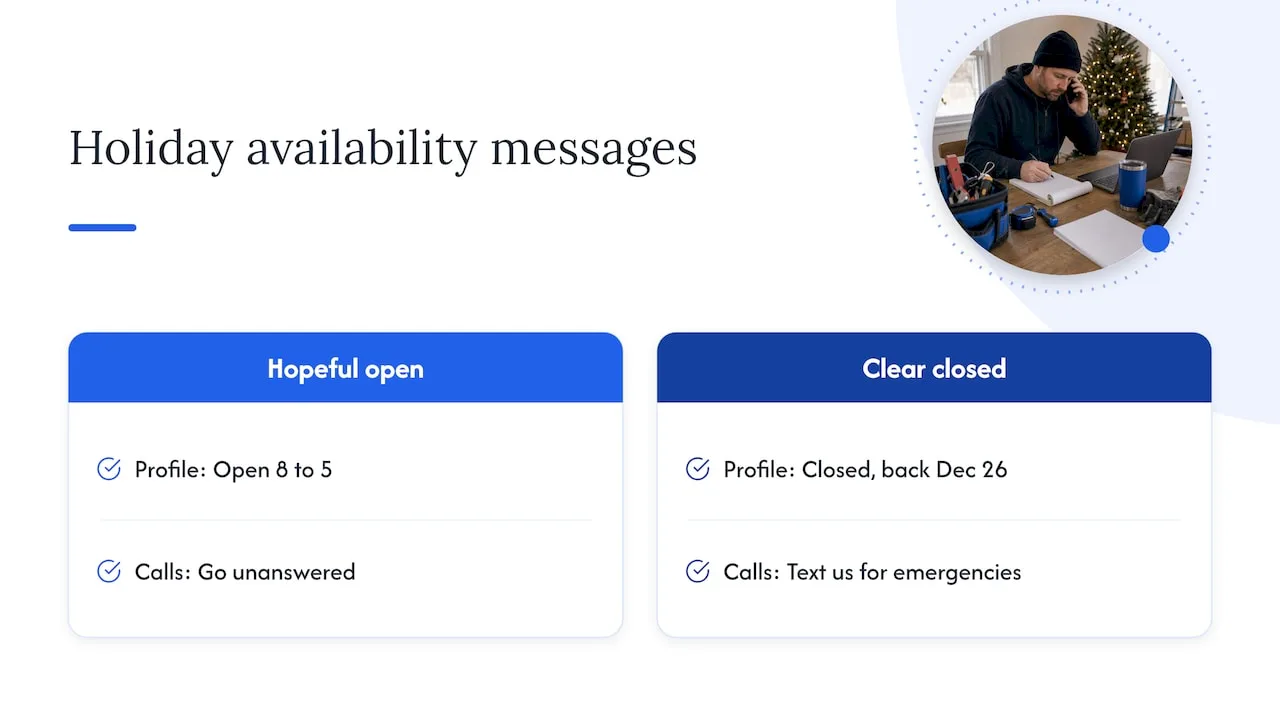
We work only with contractors in Rhode Island and Massachusetts, so we see the same pattern each winter. The business is busy, the owner is tired, and the Google profile is the last thing anyone touches. The profile still says “Open” from 8 to 5 on a holiday, calls go unanswered, and the lead goes to whoever answered.
Our view is that holiday hours are a lead capture issue, not an admin chore. Setting them takes minutes. What matters is what happens behind them: whether a call becomes a conversation, a text or a booked job. That is why we pair profile work with call handling and follow-up instead of treating them as separate projects.
We also think contractors should be honest about availability. A clear “closed, back December 26, text us for emergencies” earns more trust than a hopeful “open” that goes to voicemail. Homeowners in a Warwick basement flood or a Worcester no-heat call remember who picked up.
— Tyson
Getting help with your profile
If you manage one truck and one profile, you can handle all of this yourself in under an hour a year. It gets harder with several locations, several trades or a team that never touches the account.
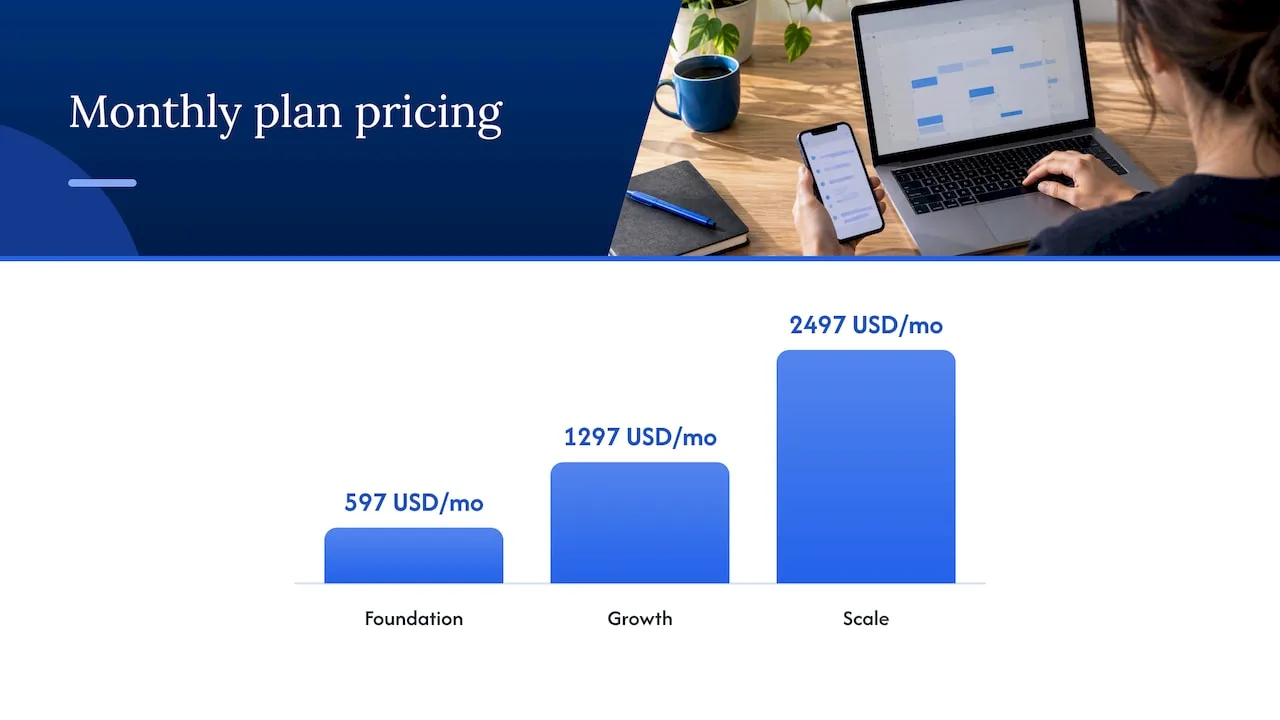
Our Local SEO and Google Business Profile service covers profile setup, hours, posts and the ongoing checks that keep listings accurate, and it connects to the call handling and review tools above. Our plans are on the pricing page, with Foundation at 597 USD per month, Growth at 1297 USD per month and Scale at 2497 USD per month. We serve contractors across both states, and you can see how we work in your area from our Rhode Island page.
If you are comparing providers, a neutral place to start is a directory that lets you filter by specialty, such as this guide to agency specialties. Ask any provider how they handle after-hours calls, not just rankings.
Troubleshooting holiday hours that look wrong
The holiday still shows a warning. Confirm that you saved special hours for that exact date, and that the entry is not set to “Open as usual” without times. Entering explicit hours is the fix that Google community answers suggest when a holiday displays inaccurately.
Special hours don’t appear at all. Check that your main hours are set to “Open with main hours” rather than no main hours.
The change isn’t live. Wait for review to finish. If a holiday is days away and nothing has changed, edit again and check the profile from a signed-out browser.
Hours changed that you didn’t change. Someone suggested an edit. Open your profile and correct it, then check again after a few days.
A long closure. If you close for a week or more, switch to the temporarily closed status instead of special hours.
FAQ
Do I need to set holiday hours if I’m open on the holiday?
Yes, it is worth doing. Google can show a warning that your hours might differ on listed holidays, and entering your actual hours confirms they are accurate. It takes a minute and removes doubt for the customer.
How far ahead should I update my holiday hours?
At least a few days, and ideally one to two weeks for major holidays. Google reviews edits before they publish, so a same-day change may not show in time.
How do I handle hours that run past midnight on a holiday?
Split them. Special hours can’t exceed 24 hours, so enter one line ending the first day and a second starting at midnight on the next. This applies to overnight emergency shifts.
What if I’m closed for a week or longer?
Use the temporarily closed status. Special hours are meant for closures of 6 days or fewer, and longer or open-ended closures belong under the closure setting.
Can customers still reach me when I’m closed?
They can if you set it up. A missed-call text-back or an AI call answering service replies to people who call after hours, so a closed day does not have to mean a lost job.