Enable Chat in your Google Business Profile and point it to WhatsApp or a text-enabled phone number: go to Edit profile, then Contact, then Chat, choose your channel, add the link or number, and save. From that moment, incoming messages land in your own WhatsApp or SMS inbox, which means your own response times, storage, and follow-up. Mobile searchers see the Chat button; desktop visitors generally don’t.
TL;DR:
- Chat requires a claimed and verified profile and is available only in select regions; customers generally see its button on mobile Search and Maps.
- Choose one primary channel because Google may show only SMS when WhatsApp and text are both configured; WhatsApp also requires a correctly encoded click to chat link.
- Assign someone to monitor messages during business hours, aim to reply within 15 to 30 minutes, and log each lead in a CRM or shared inbox.
- Google Takeout exports of legacy chat history ended on August 30, 2024, so store new conversations in your own CRM or spreadsheet.
Table of Contents
- What GBP messaging looks like since the 2024 changes
- Step-by-step: adding WhatsApp or SMS chat to your profile
- Building a reply workflow your team can actually follow
- Tracking messaging performance without losing leads
- Troubleshooting common GBP messaging issues
- Why fast replies and real tracking matter more than the button itself
- How we help you turn GBP messages into booked jobs
- FAQ
- Sources
What GBP messaging looks like since the 2024 changes
Google used to run a built-in chat system inside Business Profile, with its own inbox and message history. That’s gone. Google removed chat and call history from Business Profile as of July 31, 2024, shifting the entire model: instead of messages living inside Google’s dashboard, Chat now redirects customers straight to WhatsApp or SMS on your phone.
That shift changes what you’re responsible for. A few things to know about how it works now:
- Chat is only available to businesses with a claimed and verified profile, and only in select regions.
- The Chat button shows up for people searching on mobile, in Search and Maps; desktop users typically won’t see it.
- Google may still send automated calls or texts to your listed number for verification or quality checks, separate from customer messages.
- You now handle response speed, message storage, and spam filtering yourself, since nothing lives in a Google-hosted history anymore.
This means a message that arrives through your Business Profile is, functionally, a text or WhatsApp message like any other. Treat it that way.
Step-by-step: adding WhatsApp or SMS chat to your profile
Setting this up takes a few minutes once you have your phone number or WhatsApp link ready.
- Sign in to your Business Profile account.
- Click Edit profile, then go to the Contact section.
- Find Chat and click Edit.
- Open the channel drop-down and select either WhatsApp or Text message.
- For WhatsApp, paste in your click-to-chat URL. For SMS, enter the phone number customers should text.
- Click Save.
According to Google’s own setup instructions, these steps apply only to profiles that are claimed and verified, and chat availability depends on your region.
If you’re setting up WhatsApp, you’ll need a click-to-chat link rather than a plain phone number. The WhatsApp Help Center walks through building that link correctly. A common mistake is pasting in a raw number with spaces or missing the country code: the URL needs the number properly encoded, with no symbols or spaces, or the link won’t open a conversation.
Once it’s saved, test it on an actual phone. Pull up your listing in Search or Maps on mobile, tap Chat, and confirm it opens WhatsApp or your phone’s SMS compose screen with the right number pre-filled. Test on at least two devices, ideally one Android and one iPhone, since rendering can differ slightly.
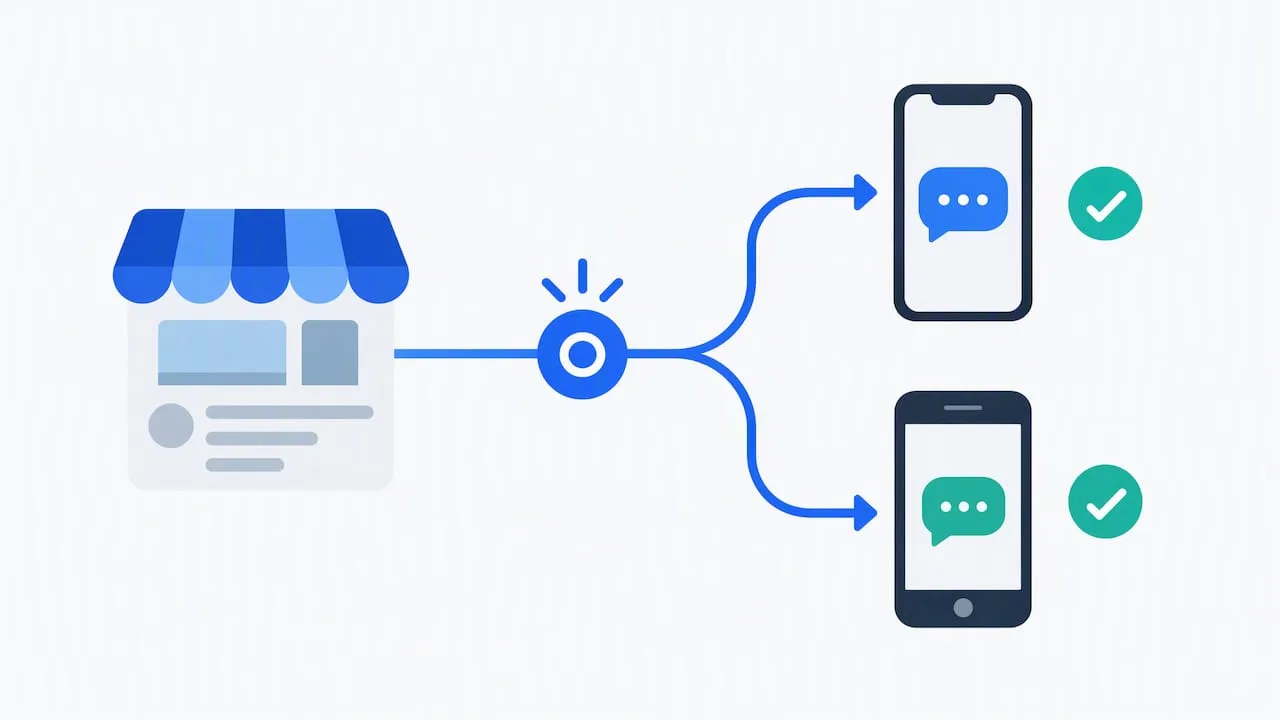
If you add both a WhatsApp link and an SMS number, Google may only display the text message option to customers, according to Google’s support documentation. Pick one primary channel rather than configuring both and hoping customers find the right one.
Pro Tip: Send yourself a test message from a second phone before going live. It confirms the link works and shows you exactly what a customer sees on their end.
Building a reply workflow your team can actually follow
A working Chat button is only useful if someone answers it fast. Decide now who owns replies, what the response window is, and where messages get logged.
- Assign one person (or a rotating on-call) to monitor the channel during business hours, with a target reply time of 15 to 30 minutes.
- Log every message into your CRM or a shared inbox immediately, including name, number, and what they asked for.
- Tag the lead source as “GBP message” so you can track how much business this channel actually generates.
- Forward SMS to a team inbox or shared line if more than one person needs visibility.
Short, ready-to-send templates save time and keep replies consistent:
- Appointment request: “Thanks for reaching out! What day and time works best for you? We’ll confirm within the hour.”
- Pricing question: “Happy to help. Can you share a few details about the job so we can give you an accurate estimate?”
- General inquiry: “Got your message! Can you tell us a bit more about what you need, and we’ll follow up shortly.”
Pro Tip: Save these templates directly in your phone’s text shortcuts or your CRM’s quick-reply feature so your team never retypes them.
If you’re already using a missed-call text-back or CRM automation, route these messages into the same pipeline instead of letting them sit in a separate app.
Tracking messaging performance without losing leads
Business Profile still reports a Messages metric inside your performance dashboard, which counts conversations started through the Chat button. BrightLocal notes that because Google now redirects to WhatsApp or SMS instead of hosting chat itself, response speed and message storage fall entirely on the business.
That matters because chat history inside GBP itself is gone. If you had conversations before the change, Google allowed exporting old records through Google Takeout only until August 30, 2024, so anything after that point exists only wherever you’ve chosen to store it.
Worth tracking going forward:
- Number of conversations started per week or month.
- Average response time from first message to first reply.
- Conversion rate from message to booked job.
- Follow-up conversion for leads that didn’t book immediately.
Your CRM, not Business Profile, should be the single source of truth for lead and appointment tracking from this point on.
Troubleshooting common GBP messaging issues
If the Chat button isn’t showing up or isn’t working the way you expect, run through these checks in order.
- Confirm your profile is claimed and verified: unverified profiles don’t get Chat at all.
- Recheck Edit profile → Contact → Chat to make sure your selection actually saved.
- View your listing on an actual mobile device. Desktop won’t show Chat even when it’s configured correctly.
- Double-check formatting: SMS numbers need the correct international format, and WhatsApp links need proper encoding with no stray characters.
- If you’re getting automated calls or texts that look odd, check Google’s page on automated verification contacts, which explains how to manage or opt out of some of those messages in advanced settings.
- For anything involving the Business Messages API or webhooks, that’s a developer-level integration, not a standard profile setting.
Why fast replies and real tracking matter more than the button itself
Turning on Chat is the easy part. What determines whether it produces booked jobs is what happens in the next ten minutes: who sees the message, how fast they reply, and whether it gets logged anywhere permanent. A contractor who treats a GBP message like a voicemail they’ll get to later is leaving work on the table, since the customer already has three other tabs open.
The setup matters less than the system around it. Pair a fast reply habit with a CRM that actually captures the lead, and the channel pays for itself.
— Tyson
How we help you turn GBP messages into booked jobs
Setting up Chat correctly is a fifteen-minute task. Making sure every message turns into a tracked lead, a fast reply, and a booked appointment is the part most contractors don’t have time to build themselves, and it’s where we come in. Our local SEO and Google Business Profile service sets up your Chat channel, optimizes the rest of your profile, and connects it to automated follow-up so nothing sits unanswered.
We also build missed-call text-back and CRM automation that logs every GBP message alongside your calls and web form leads in one place, plus AI website chat so your site and your Business Profile funnel leads into the same inbox instead of three different ones. If you’d rather have a local team handle the setup, tagging, and follow-up than piece it together yourself, check out our pricing and book a time to talk through your setup.
FAQ
Does Google Business Profile still have its own chat inbox?
No. Google removed the built-in chat and call history feature from Business Profile, and conversations now redirect to WhatsApp or SMS on your own phone or messaging platform. You manage replies and storage through your own systems from that point forward.
Can customers see the Chat button on desktop?
Chat entry points are built for mobile and typically appear to people searching on Search or Maps from a phone. Desktop visitors generally won’t see the same Chat option, so test any new setup on a mobile device.
What happens if I set up both WhatsApp and SMS?
Google’s support documentation notes that when both options are configured, customers may only be shown the text message option. Choose one primary channel and test it directly rather than configuring both and leaving the outcome to chance.
Can I recover old chat messages from before the 2024 change?
Legacy chat and call history could be exported through Google Takeout only through August 30, 2024, and that window has closed. Going forward, mirror every message into your own CRM or spreadsheet so you never depend on Google to store your lead history.
How do I build a WhatsApp link for my Business Profile?
The WhatsApp Help Center documents the exact format for a click-to-chat link, which opens a pre-filled conversation with your business number. Use that link format exactly when entering it into the Chat field in Business Profile, since improperly encoded links won’t open correctly.