Bing Places for Business is Microsoft’s free tool for managing how your company shows up in Bing search and Bing Maps. For a plumber, HVAC tech, electrician or roofer, it is a one-time setup of an hour or two plus a short monthly check. The payoff is a listing with the right name, phone number, hours and service area wherever Bing shows local results. The listing only earns jobs when someone answers the phone, replies to the text and has reviews to back you up. We will cover all of that below.
TL;DR
- Bing Places is a free platform from Microsoft for creating and managing the listing that appears in Bing search results and Bing Maps.
- A contractor who works from home or travels to customers can use the service area field and hide the street address from search results, but still needs a real address for verification.
- Keep your business name, address and phone number identical on Bing, Google, Apple Maps and your website. Mismatches are the first thing to check when verification fails or the listing is missing.
- Only list towns you actually send crews to. A long wish list of towns does not help you.
- A complete listing gets you found. Fast call answering and a steady flow of reviews turn the found listing into booked jobs.
Table of Contents
- What Bing Places does for a contractor
- What changed in the new Bing Places
- Can a home-based or mobile contractor have a listing?
- How to claim and verify your listing, step by step
- What to put in the listing, and what to keep updated
- One set of facts across Bing, Google and Apple
- If your listing is verified but you are not showing up
- From listing to booked job
- Where Coastal Connect fits
- Our view: the listing is the start, not the strategy
- FAQ
- Sources
What Bing Places does for a contractor
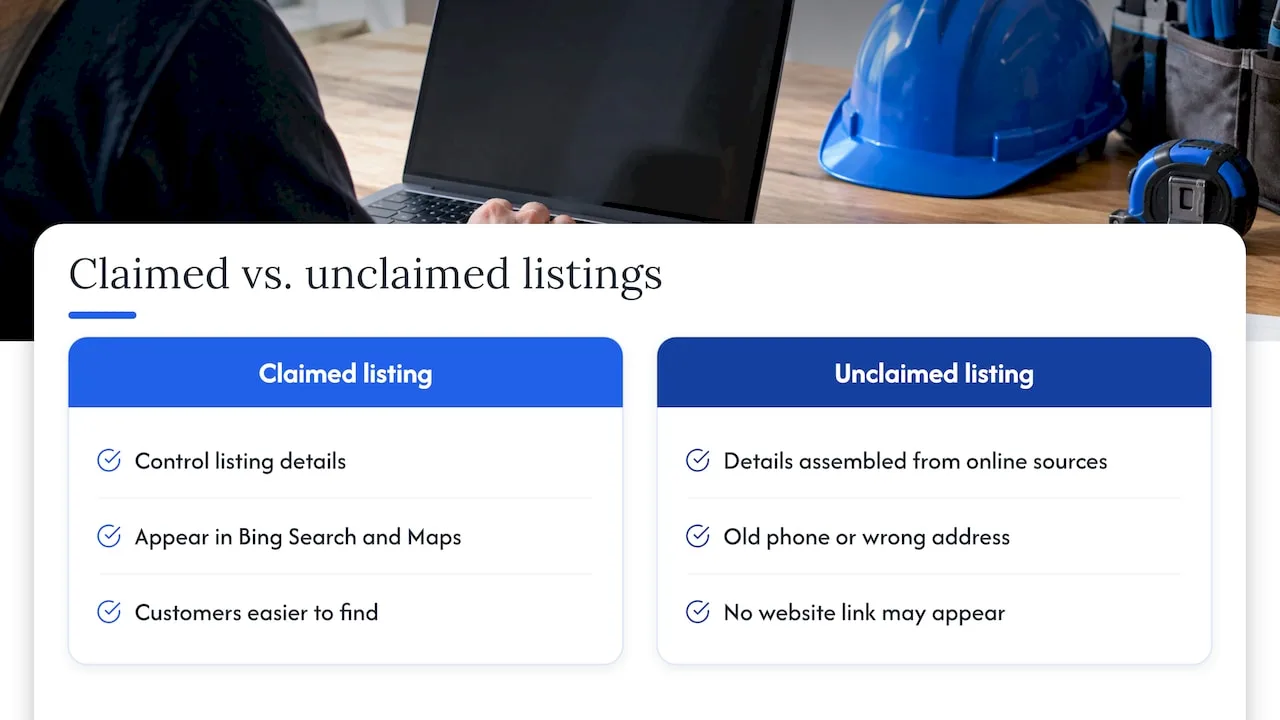
When a homeowner searches Bing for “emergency plumber near me” or opens Bing Maps, the business details they see come from a listing. Bing Places for Business is where you control that listing. Microsoft describes it as a free platform where businesses create and manage listings so they appear in Bing search and Bing Maps and are easier for customers to find.
If you never claim your listing, Bing may still show a version of your business assembled from other sources online. That version can carry an old phone number, a wrong address or no website link. Claiming it puts you in charge of the facts a customer sees at the moment they decide who to call.
Microsoft’s own support page says to use Bing Places for Business to claim or update your listing so it shows in Bing Maps results, and notes that some features may not be available in every country or region. For a Rhode Island or Massachusetts contractor, the U.S. version applies.
Why it is worth an hour of your time
Most contractors put their effort into Google, and that is sensible. But the Bing listing costs nothing, takes little time and covers people who search another way. Microsoft has also said it plans deeper integrations with Bing Maps and Copilot, its AI assistant. That makes accurate, structured business data more useful over time, not less.
The cost of ignoring it is small but real. One wrong digit in a phone number on a listing you never checked is a missed call you will never know about.
What changed in the new Bing Places
In October 2025 Microsoft launched a rebuilt Bing Places experience. According to the company, it consolidated the owner experience under the Bing.com domain to simplify access and align Bing Places with the rest of Bing.
The feature that matters most to a busy owner is the Recommendation Tool. Microsoft says it uses listing health signals and your business segment to suggest what to add: photos, a website link, hours and social media links. Think of it as a to-do list for your profile. If you set up a listing years ago and forgot it, logging in and working through those suggestions is the fastest improvement you can make.
Older tutorials may show screens that no longer match what you see. Follow the steps and the logic below, not the exact button names.
Can a home-based or mobile contractor have a listing?
Yes. Most trades work this way: the office is a garage, a spare room or a shop with no walk-in traffic, and the real work happens at the customer’s house. Bing Places has a field built for this.
Microsoft’s Bing Places API documentation defines the service areas field for professional and service businesses. It is where you name the regions, towns or cities where you serve customers at their location. The same documentation includes a hide address option that removes the address from Bing search results.
In practice that gives you three things to decide:
- Do customers visit you? If you have a showroom or counter, show the address. If not, hide it.
- Where do your crews go? Those towns go in the service area. Nothing else does.
- What address do you verify with? You still need a real business address that Bing can verify. Hiding it from the public is a display choice. It does not remove the need for the address.
How to choose your service area towns
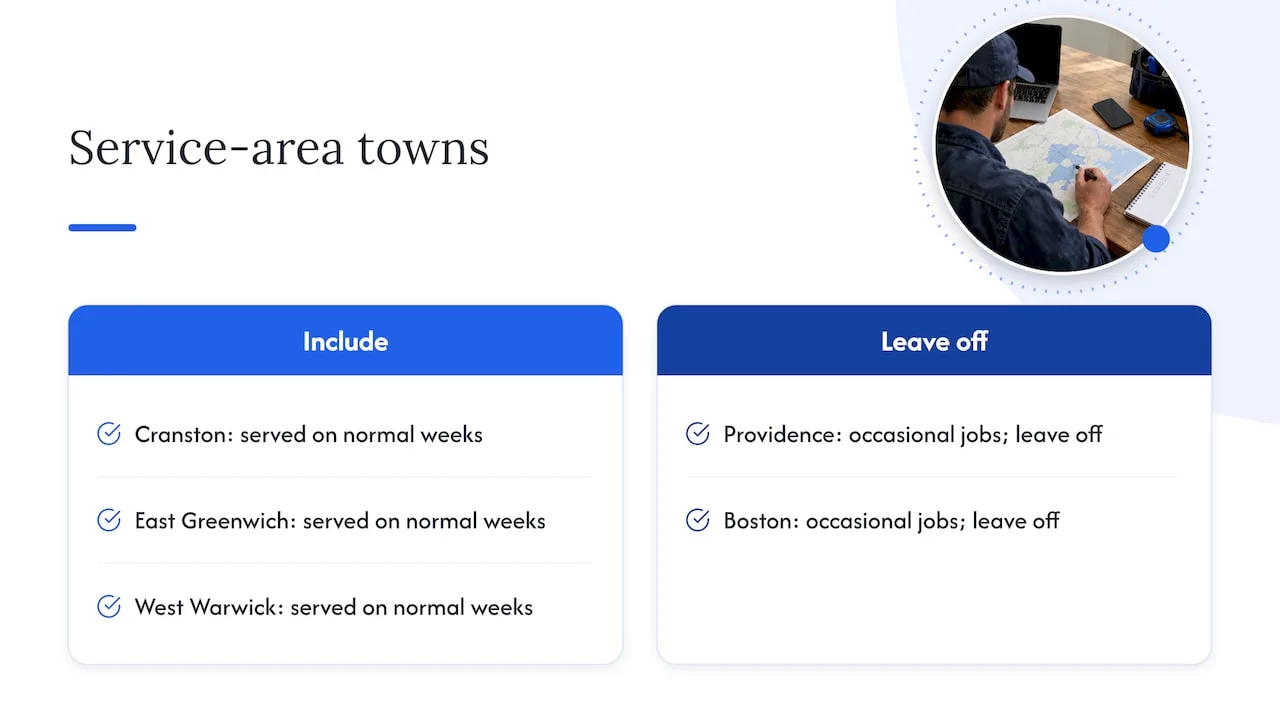
Ask one question about each town: do we actually send trucks there? If a plumber in Warwick serves Cranston, East Greenwich and West Warwick on a normal week, those go on the list. Providence and Boston might get you the occasional job, but if you do not want to drive there, leave them off.
A service area list works best as a statement of fact about your operations, not a list of towns you hope to rank in. Keep it in line with what customers hear when they call. If the listing says you cover a town and your dispatcher says you do not, the customer loses trust before you have spoken.
If you also want pages on your website for each town, do that carefully. We cover how to build them without tripping spam filters in our guide to service area pages for contractors. The same idea of real coverage applies to Google, and our readers can see it in practice in the explanation of service areas on Google Business Profile, which pairs naturally with what you set in Bing.
How to claim and verify your listing, step by step
The exact screens change as Microsoft updates the product, but the process stays the same.
Step 1: Gather your facts first
Before you log in, write down the details exactly as they appear on your website and your Google profile:
- Business name, the way it appears on your truck and invoices
- Street address you can verify with
- Main phone number, the one that reaches a person or your answering system
- Website address
- Business hours, including emergency or after-hours availability
- Service area towns
- Your primary trade category and any secondary services
This is where most problems start. A name with “LLC” on one listing and without it on another, “Street” versus “St.”, or a tracking number on one site and a main number on another all look like different businesses to the systems that compare them.
Step 2: Sign in and search for your business
Go to Bing Places for Business and sign in with a Microsoft account. Use an account tied to the business, not one belonging to an employee who might leave. Then search for your company by name. If a listing already exists, claim it. If not, add a new one.
Claiming an existing listing is better than creating a duplicate. Two listings for the same business split your reviews and information, and confuse both customers and search engines.
Step 3: Enter details and set the service area
Fill in the facts from Step 1. If you work from home, choose the service area option, list your towns and hide your address from the public view. Pick categories that describe the work you want, such as plumber, HVAC contractor, electrician or roofing contractor, rather than a vague umbrella term.
Step 4: Verify
Bing will offer verification options depending on your listing. Complete whichever one is offered promptly, since an unverified listing cannot be fully managed. Use a browser you are comfortable with and a phone or mailbox you can reach, and keep the business details exactly consistent with what is already online.
Step 5: Work through the recommendations
Once verified, open the recommendation list. Microsoft’s own examples include photos, a website link, hours and social links. Add them all. A listing that shows a real truck, a real crew and real finished jobs looks like a business that shows up.
What to put in the listing, and what to keep updated
A complete listing needs more than the basics. For a contractor, these matter most:
- Photos of real work. Crew in uniform, branded trucks, before and after shots. Skip stock photos.
- Hours that match reality. If you offer 24/7 emergency service, say so. If you close for holidays, update the hours before the holiday. Our holiday hours guide for Google applies the same routine, and the habit carries over to Bing.
- A website link that lands on the right page. Send people to a page that makes it easy to call or book, not to a slow homepage with no phone number at the top.
- Social media links if you keep them active.
- Service descriptions in plain words: drain cleaning, furnace repair, panel upgrades, roof replacement.
Set a reminder to check the listing once a month and after any change: new phone number, new truck wrap, new hours, new town. Ten minutes a month is enough.
One set of facts across Bing, Google and Apple
Bing is not the only map a homeowner might use. Many iPhone users go straight to Apple Maps, and most search on Google. The work is the same on each: one name, one address, one phone number, one set of hours.
We wrote about the Apple side in Apple Maps for contractors. If you are working on Google as well, GBP profile completeness covers the fields that matter most. Once you have those facts right in one place, copying them to the others takes minutes.
Your website should carry the same facts, in a structured form search engines can read. Our walkthrough of local business schema for contractors shows how.
If you use call tracking numbers, be deliberate about where they appear. A different number on each listing can look like a mismatch. Our call tracking checks explain how to track calls without scrambling your listings.
If your listing is verified but you are not showing up
A verified listing is not a guarantee of appearing for every search. Run through these checks in order:
- Search by your exact business name. If you appear, the listing is live. If you do not, check that verification actually finished and that you are logged in to the right account.
- Compare name, address and phone with your website. Even small differences can hold things back. If verification fails with an error code, a common first move is to wait a few hours, try another browser or device, clear the cache or use a private window, then confirm your details match exactly.
- Check for duplicates. Search your phone number and your old business names. Merge or claim duplicates rather than leaving them.
- Check your categories and service areas. If you serve a town but did not list it, you will not be matched to people searching there.
- Fill every recommended field. An empty listing has less to match against a search.
- Give it time. New and changed listings take a while to settle. Do not rewrite everything every few days.
If you still cannot resolve a problem, use the feedback and support options inside Bing Places for Business.
From listing to booked job
A listing puts your number in front of a homeowner with a leaking pipe or a dead furnace. What happens next decides whether you win the job.
Answer fast. A homeowner with an emergency calls the first number that picks up. If your phone goes to voicemail while you are on a roof, the next contractor on the list gets the call. A missed-call text-back that sends a message within seconds keeps the lead warm until you can call.
Show proof. Reviews are what people read before they dial. Ask every satisfied customer, the same day, while the job is fresh. An automated request after each completed job makes this routine instead of something you remember to do on Fridays.
Make the next step obvious. The listing links to your website. That page needs your phone number, a short booking form and the towns you serve visible without scrolling.
For a deeper look at what happens after the click, see our guide to lead nurturing automation for contractors.
A simple monthly routine
| Task | How often | Time |
|---|---|---|
| Check name, address, phone and hours | Monthly | 5 minutes |
| Add new job photos | Monthly | 5 minutes |
| Review the recommendation list | Monthly | 5 minutes |
| Update holiday or seasonal hours | Before each holiday or season | 5 minutes |
| Ask for reviews after completed jobs | After every job | Under 1 minute each |
Where Coastal Connect fits
A contractor’s listings, website, reviews and phone handling all work together. We build them as one system for trades in Rhode Island and Massachusetts, using the plumbing, HVAC, electrical, roofing and landscaping work we focus on.
Our Local SEO and Google Business Profile service covers the listing side. Reviews that keep coming automates review requests, and missed-call text-back and CRM answers a lead when you cannot. If you would rather have a voice answer the call around the clock, there is our AI voice agent. Plans on our pricing page start with Foundation at $597 per month, then Growth at $1,297 per month and Scale at $2,497 per month.
If you want a local team that knows the towns and trades you work in to look at your listings and your call handling, start on our home page.
Our view: the listing is the start, not the strategy
We talk to contractors who have spent a weekend on a perfect listing and still lose jobs. The listing was fine. The problem was the phone ringing out during a job, a website with no obvious way to book and a handful of reviews from three years ago.
Our position is simple. Map listings, a website that books jobs, review requests and call handling are one chain, and the weakest link sets your results. That is why we work only with contractors in Rhode Island and Massachusetts, and why our local team knows the difference between the towns a plumber really serves and the ones that look good on a list.
Claim the Bing listing, tell the truth about where you work and keep it current. Then make sure every call and text that comes from it gets an answer. That is where the revenue is.
Tyson
FAQ
Is Bing Places for Business free?
Yes. Microsoft describes it as a free platform for creating and managing your business listing in Bing search and Bing Maps. You do not pay to claim or edit a listing.
Can I list my business if I work from home?
Yes. Use the service area setting to name the towns you serve, and choose to hide your address from search results. Microsoft’s documentation describes both options. You still need a real address to verify the listing, so use one you can receive verification at.
How many towns should I list as my service area?
List only the towns where you send crews in a normal week. A short, accurate list matches what your dispatcher tells customers. Adding places you do not serve creates mismatches and wasted calls.
Do I need Bing Places if I already have a Google profile?
They are separate listings on separate platforms. Your Google profile does not update Bing, so a contractor who wants complete coverage manages both. Since the details are the same, the second one takes far less time than the first.
What should I do first if my listing does not show up?
Search your exact business name, then compare the name, address and phone number with your website. Fix any differences, look for duplicate listings and make sure verification finished. If that does not solve it, use the support options inside Bing Places for Business.
Sources
- Introducing the New Bing Places for Business, Microsoft Bing Blog
- Add and manage your business listing, Microsoft Support
- Bing Places for Business API documentation
- Google Business Profile service areas, Picshaw