60–90 Day Test for Google Business Profile Categories (Practitioners)
Coastal Connect
Google Business Profile categories tell Google what your business is, and that single field drives more local search visibility than almost anything else in your listing. Pick the most specific primary category that accurately describes your business, then add one to three secondary categories that cover the real services you offer. Skip the vague, broad options, and skip the temptation to add nine categories just because Google lets you.
TL;DR:
- Choosing the most specific primary category that accurately describes your business is critical to maximizing local search visibility and appearances in Google Maps and the local pack.
- Your primary category has the most impact on where your listing is shown, while secondary categories add context but do not override the primary.
- Business types such as storefronts, service-area businesses, hybrids, and co-located departments each require different category and profile strategies for optimal performance.
- Changing categories should be tested over 60 to 90 days by tracking calls, clicks, and directions requests, with changes made gradually and one at a time for clarity.
- Categories also unlock specific profile features like booking buttons, menus, or service lists, which only show if your category supports them.
Table of Contents
- What Google Business Profile Categories Actually Do
- How Many Categories You Can Use, and Which Business Type You Are
- How to Choose the Best Primary and Secondary Categories
- How to Find and Confirm the Exact Category Name
- Which Features Change Based on Your Category
- Common Mistakes That Quietly Hurt Your Listing
- A Practical Audit and Testing Template You Can Copy
- What Actually Moves the Needle on Category Selection
- Where to Verify the Rules Yourself
- A Managed Option When You’d Rather Not Run the Test Yourself
- Sources
- FAQ
What Google Business Profile Categories Actually Do
Categories are not a label you slap on for organizational tidiness. They are the primary signal Google uses to decide whether your business shows up when someone searches “plumber near me” or “24 hour HVAC repair.” Get the category wrong, and you can have five-star reviews, a gorgeous website, and perfect NAP consistency, and still lose the local pack to a competitor whose profile is thinner but correctly categorized.
Every profile has exactly one primary category and can carry multiple secondary categories. The primary category carries the most weight in how Google decides where your listing appears in Maps and the local pack. Secondary categories add context and can unlock additional features, but they don’t override what the primary category tells Google your business fundamentally is.
Google’s own guidance on this is blunt: describe what your business IS, not what it HAS. A bakery that also sells coffee is a bakery, not a “coffee shop with baked goods” unless coffee is genuinely the core of the operation. Google’s official category guidelines walk through this distinction with real examples, and it’s worth reading once even if you never touch the API.
There’s a mechanic here that trips up a lot of business owners: Google often infers broader categories automatically once you pick something specific. Choose “Italian Restaurant” and Google understands you also fall under the umbrella of “Restaurant.” You don’t need to stack both. Adding the broader term on top of the specific one is redundant at best and can dilute relevance at worst.
Categories also gate which features show up on your profile. This is the part most guides skip.
- Restaurants get menu links, online ordering buttons, and delivery integrations.
- Hotels unlock class ratings, amenity lists, and check in/check out fields.
- Health and beauty businesses can turn on booking buttons directly in the Knowledge Panel.
- Service businesses like electricians or roofers can list specific service types rather than a generic description.
- Auto repair shops can display service menus with pricing ranges.
None of those features appear if your category doesn’t support them, no matter how good your description is. A roofer categorized as “Contractor” instead of “Roofing Contractor” isn’t just less specific. It may be invisible to the service type metadata that Google uses to match searches like “roof leak repair” to a business.
How Many Categories You Can Use, and Which Business Type You Are
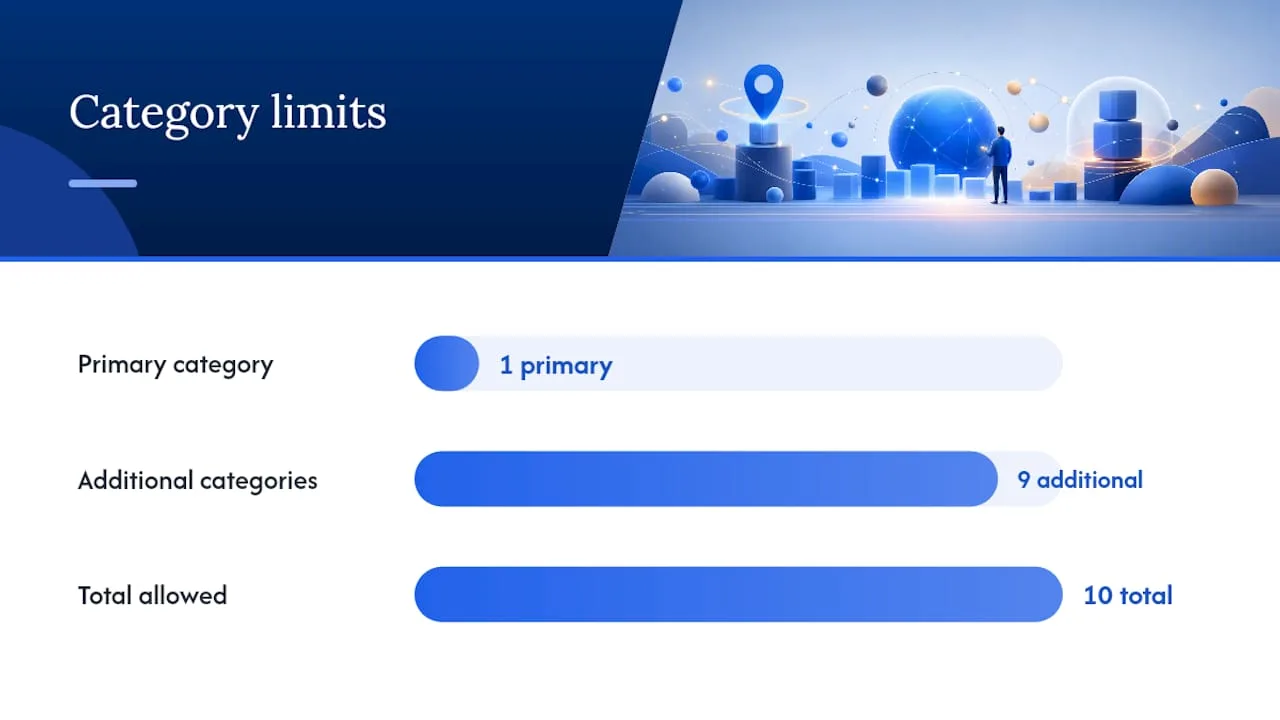
The mechanics are simple: one primary category, plus up to nine additional categories, for a maximum of ten total. Google’s category management documentation confirms this cap and notes that categories can be changed at any time, though changes sometimes take a few days to reflect in search results.
The harder part is figuring out which type of business profile you’re actually running, because that changes how categories should be assigned.
Storefront businesses are the simplest case. You have a physical address customers visit, like a salon or a retail shop, and your categories should reflect exactly what happens at that location.
Service-area businesses don’t want customers showing up at their address. A plumber who drives to job sites, an electrician working out of a home garage, or a landscaper covering three counties falls into this group. These businesses hide their address on the public profile and instead define a service area by city, zip code, or radius. Category selection matters even more here, because without a storefront to visually confirm the business, Google leans harder on category and service-area data to match search intent.
Hybrid businesses serve customers at a physical location and also travel to them. A pest control company with an office that also runs mobile service trucks is hybrid. These profiles show an address but still define a service area, and categories need to reflect both the walk-in and dispatched sides of the operation if both are real revenue sources.
Co-located and departmental businesses need separate profiles rather than a single profile with a pile of categories. A hardware store with a garden center that has its own entrance, staff, and phone number generally needs its own listing rather than being buried as a secondary category on the parent profile. The same logic applies to a medical building with three practitioners under one roof. Each practitioner typically needs a distinct profile, categorized by their specialty, rather than one shared listing trying to cover all of them.
- One physical address with genuinely separate departments (own entrance, own phone, own staff) usually warrants separate profiles.
- A single practitioner working within a larger practice usually needs their own profile, categorized by specialty.
- A business that just offers multiple services under one roof, with no separate public-facing department, stays as one profile with layered secondary categories.
How to Choose the Best Primary and Secondary Categories
Google gives three rules that matter more than any keyword strategy: be as specific as possible, use the fewest categories necessary, and never treat a category field as a place to stuff keywords. Every good decision framework starts there.
Here’s a step-by-step approach that works for almost any small business:
- Write down what you actually are in one sentence. Not what you offer, what you are. “We are a residential electrician” is different from “we are an electrical contractor that also does panel upgrades and generator installs.” The first sentence points you toward a specific category. The second tempts you to over-categorize.
- Search Google’s category list for the closest exact match to that sentence. Don’t settle for “close enough” if a more precise option exists. “HVAC Contractor” beats “Contractor.” “Emergency Dental Service” beats “Dentist” if you genuinely do same-day emergency work as a core part of the business.
- Set that as your primary category. This is the one decision that carries the most ranking weight, so give it real thought rather than picking whatever the default suggestion was during setup.
- Add secondary categories only for services you meaningfully perform, not services you occasionally touch. A general contractor who also does kitchen remodels might reasonably add “Kitchen Remodeler” as a secondary if that’s a real, marketed line of business, not a category grab.
- Stop at three secondary categories unless you have a genuinely diverse, multiservice operation. Nine is the ceiling Google allows, not the target. A landscaping company that adds “Snow Removal,” “Lawn Care Service,” “Tree Service,” “Irrigation,” “Fence Contractor,” and five more starts to look unfocused to both Google’s algorithm and to a human scanning search results.
A classic example of getting this wrong: a pizza place that does delivery categorize itself as “Pizza Delivery” when it also has a full sit-down dining room. That choice tells Google to prioritize the business for delivery-intent searches and can suppress it for “restaurants near me” searches where dine-in intent matters. “Pizza Restaurant” as the primary, with “Pizza Delivery” as a secondary, usually captures both intents better.
Once you’ve made a change, don’t just assume it worked. BrightLocal’s category guidance recommends tracking calls, website clicks, direction requests, and booking actions before and after a category change, over a 60 to 90 day window, since Maps ranking and search behavior take time to stabilize after any profile edit.
Pro Tip: Change one category at a time, not your primary and three secondaries simultaneously. If performance shifts, you want to know exactly which change caused it, not guess between four variables.
Watch these signals specifically during your test window:
- Phone calls tied to the profile, visible in your Business Profile performance dashboard.
- Website click-throughs from the listing itself.
- Direction requests, a decent proxy for how often you’re surfacing in “near me” searches.
- Map impressions and search impressions, broken out by discovery versus direct search, since a category change should move discovery numbers first.
- Booking or quote-request actions, if your category supports a booking button.
If none of those numbers move after 90 days, the category probably wasn’t your bottleneck and the issue likely sits elsewhere, in reviews, photos, or website conversion.
How to Find and Confirm the Exact Category Name
Google’s list of available categories runs into the thousands, and it changes regularly, which is exactly why guessing at a name in the editor is risky. There are three reliable ways to find the right one.
The simplest is inside the Business Profile editor itself. When you go to edit your category, start typing and Google will surface live, currently valid category suggestions. This is the most reliable method for non-technical users because it reflects exactly what’s selectable right now, not a cached list that might be a few months stale.
For a broader view before you commit, third-party tools like PlePer’s category list publish a near-live dump of Google’s full category set, searchable and often organized by industry. It’s a useful research step before you go into the actual editor, especially if you want to browse everything available in your niche rather than typing guesses one at a time. The caveat: PlePer’s list defaults to English and USA data, and third-party lists can lag slightly behind Google’s live system, so treat it as a research tool, not the final source of truth. Always confirm the exact name inside your actual Business Profile editor before finalizing.
If you manage multiple locations or build category selection into a larger workflow, the Google Business Profile API is the serious option. The categories.list method returns the live, authoritative list, and you control the output with two required parameters:
regionCode, which localizes the results to a specific country.languageCode, which returns display names in the language you specify.
The response includes a stable categoryId and a localized displayName for each category, along with a pageSize parameter to control how many results come back per call. This matters for agencies and multi-location operators because category names can shift slightly by locale, and the categoryId stays consistent even if the displayed name changes, which makes it the reliable value to store if you’re automating profile updates across dozens of listings. The full parameter and response structure is documented in Google’s categories.list reference.
Use the manual editor lookup if you manage one or two locations. Use the API if you’re managing category data programmatically across ten-plus locations or building it into an internal tool, since manually checking each listing at that scale invites inconsistency.
Which Features Change Based on Your Category
Category choice isn’t just a ranking lever. It’s a feature switch. Google ties specific profile capabilities directly to category selection, and a mismatch between your category and your actual services can mean you’re missing functionality customers expect to see.
- Restaurants and food service categories unlock menu links, online ordering integrations, and delivery platform connections directly on the profile.
- Hotels and lodging categories enable star or class ratings, amenity checklists, and check in/check out time fields.
- Health and beauty categories, like salons, spas, and some medical practices, can activate a direct booking button that lets customers schedule an appointment without leaving the search results page.
- Professional services categories (legal, financial, consulting) typically surface a services list rather than a menu, letting you itemize what you offer without pricing pressure.
- Auto repair and home services categories can expose
serviceTypes, a metadata field in the API that lists specific services under the umbrella category, which Google can match against granular search queries.
Google’s developer documentation on the category resource structure shows that categories can carry optional fields like serviceTypes and moreHoursType, the latter of which supports businesses with hours that differ by function, like a pharmacy with different hours for its drive-through window versus its main counter. Not every category supports every metadata field, which is one more reason picking the most specific, correctly matched category matters. A generic category might technically apply to your business but simply not expose the metadata fields your specific service needs.
This is also where the earlier point about implicit categorization becomes practical. If you’re an “Italian Restaurant,” you already inherit general restaurant-level features. You don’t need to also select “Restaurant” to get the menu and ordering functionality. Redundant categories rarely add features, they just eat one of your limited secondary slots.
Common Mistakes That Quietly Hurt Your Listing
Most category problems fall into a small handful of repeat offenses, and they’re almost all fixable in five minutes once you know what to look for.
Category stuffing is the most common. A business adds seven or eight loosely related secondary categories hoping to catch more search traffic. Instead, it dilutes relevance signals and can confuse which searches Google actually surfaces you for. Google’s own guidance is explicit that categories should never be used as a keyword-stuffing tactic, and profiles that do this can see inconsistent local pack performance rather than the boost owners expect, per Google’s representation guidelines.
Using attributes as if they were categories is a subtler mistake. “Wheelchair Accessible” or “Free Wi-Fi” are attributes you check off separately in your profile, not categories you select. Business owners sometimes hunt for these in the category search box, don’t find them, and pick something adjacent that’s wrong.
Choosing a category that’s technically true but too broad happens constantly. “Store” instead of “Hardware Store.” “Contractor” instead of “Deck Builder.” Broad categories are easier to find in a dropdown, but they compete against every other business using that same broad label.
Skipping the co-location rule causes real policy problems. If your business has a genuinely separate department with its own entrance, phone number, or staff, cramming it into your main profile as a secondary category instead of giving it its own listing violates Google’s guidelines on representing your business accurately and can trigger a suspension review.
Not expecting a temporary dip after edits. Changing your primary category, especially a significant shift, can trigger a re-verification request or a short window of instability in local rankings while Google reprocesses the listing. This is normal. It is not a sign you broke something permanently.
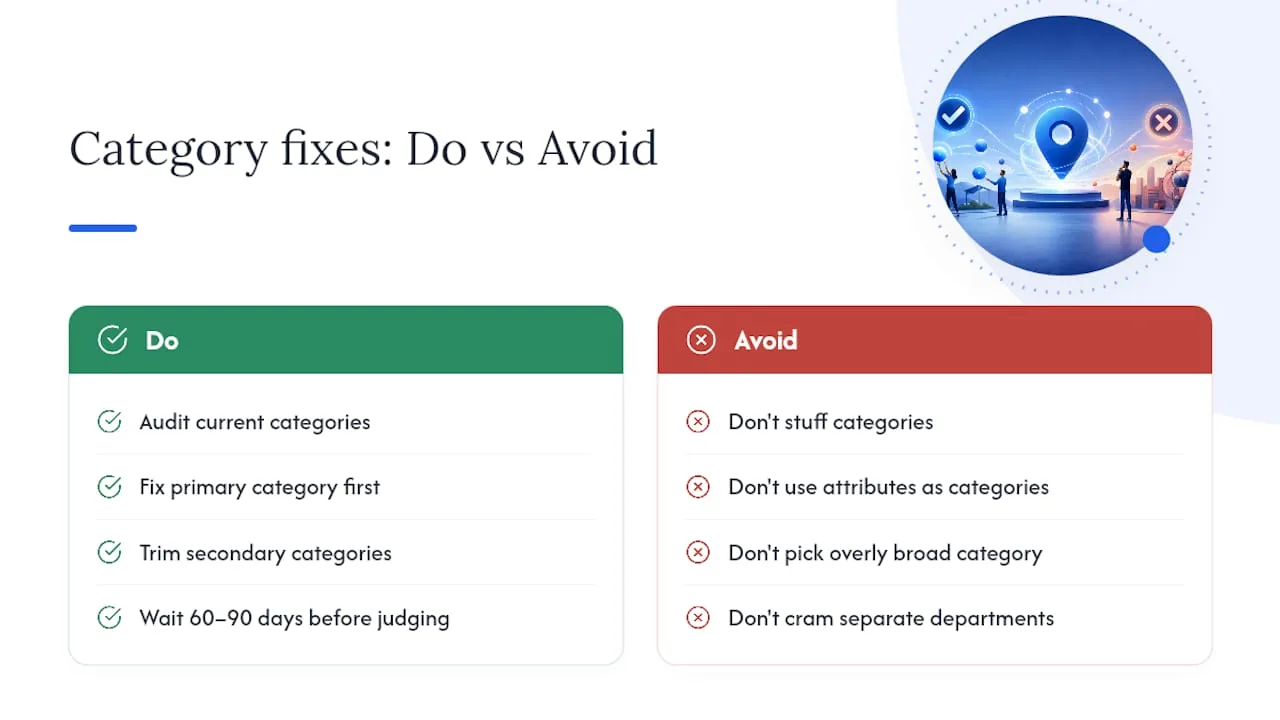
If you discover your profile has been mis-categorized for a while, the fix is straightforward: audit your current categories against what your business actually does today, correct the primary category first, trim secondary categories down to genuine service lines, and give the change 60 to 90 days before judging the result.
Pro Tip: If you just changed your primary category and see a request for re-verification, don’t panic and don’t revert immediately. Complete the verification promptly, since delaying it is what actually causes extended visibility gaps, not the category change itself.
A Practical Audit and Testing Template You Can Copy
Most advice on category selection stops at “pick the right one.” The harder, more useful skill is knowing how to verify that your choice is actually working, and that takes a simple audit process rather than a gut feeling.
Here’s a workable sequence for running your own category test:
- Record your baseline before touching anything. Pull your last 30 days of calls, website clicks, direction requests, and map impressions from the Business Profile performance dashboard. Write these numbers down. You cannot measure a change against a number you didn’t capture.
- Log the exact change and the date. Note the old primary category, the new primary category, and any secondary category additions or removals, timestamped to the day you made the edit.
- Hold everything else steady during the test window. Don’t simultaneously overhaul your description, swap your primary photo set, and change categories. If three things move at once, you can’t attribute results to any one of them.
- If you run multiple locations, treat one as a control. Change categories at one location, leave a comparable location untouched, and compare performance deltas between the two. This isolates the category effect from seasonal or market-wide shifts that would hit both locations equally.
- Check in at 30, 60, and 90 days. Category changes can take time to fully propagate through Maps ranking, so a 7-day check is nearly meaningless. BrightLocal’s category testing guidance points to a 60 to 90 day window as the realistic timeframe to see stable results.
- Decide: keep, iterate, or revert. If your test location shows meaningful gains in calls or bookings relative to your control, keep the change. If it’s flat, consider a different secondary category mix before touching the primary again. If it’s clearly worse, revert to the prior category and document why.
A simple tracking table makes this easier to actually follow through on, rather than letting the test quietly fizzle out after week two.
| Field | What to record |
|---|---|
| Primary category (before) | The exact category name prior to the change |
| Primary category (after) | The exact new category name |
| Secondary categories | Full list, added or removed |
| Date changed | The exact day the edit was saved |
| Baseline calls (30-day) | Call count in the 30 days before the change |
| Baseline clicks (30-day) | Website click count in the 30 days before the change |
| 30-day result | Calls, clicks, direction requests at day 30 |
| 60-day result | Same metrics at day 60 |
| 90-day result | Same metrics at day 90 |
| Decision | Keep, iterate, or revert |
Interpreting the results honestly matters more than the spreadsheet itself. A modest increase in calls paired with a drop in website clicks might mean your new category is attracting more phone-first customers, like emergency service searches, rather than researchers. That’s not necessarily bad, but it changes what you should expect from your website and follow-up process too.
Know when this stops being a DIY project. A single location with one clear service line can run this test with a spreadsheet and 20 minutes a week. A five-location chain, a multi-practitioner medical office needing separate profiles, or a business straddling three or four legitimately different service categories is a different problem entirely. At that scale, the coordination overhead of tracking multiple tests, multiple control groups, and multiple verification requests usually justifies bringing in someone who does this full-time.
What Actually Moves the Needle on Category Selection
Categories get treated like a checkbox task, something you set once during profile setup and never revisit. That’s the biggest miscalculation I see. The businesses that actually win local visibility treat category selection as a live variable, something they revisit as their service mix shifts, not a settled decision from year one.
Here’s the part that surprises people: category accuracy without supporting signals barely moves anything. A perfectly chosen primary category paired with inconsistent business name formatting, thin review volume, or a website that doesn’t reinforce the same service language will underperform a slightly-less-perfect category paired with strong reviews and matching NAP data everywhere else. Categories are the foundation, not the whole building.
The other thing worth saying plainly: a category change often changes who find you, not just how many people find you. Switching from a broad category to a specific one can produce fewer total impressions but a much higher share of calls from people who actually want what you do. For a contractor paying for every lead, that trade is almost always worth it, even when the raw traffic number looks smaller.
DIY testing works fine for a single location with the bandwidth to check a dashboard weekly. Once you’re juggling multiple locations, department splits, or a service mix that keeps expanding, the coordination cost of doing it right stops being a good use of an owner’s time.
— Tyson
Where to Verify the Rules Yourself
For the canonical rules, go straight to Google’s Business Profile category guidelines and category management documentation. For programmatic or multi-location work, bookmark the categories.list API reference. For a quick browse of the full live list without touching code, PlePer’s category tool is a solid starting point, followed by confirmation in your actual profile editor.
A Managed Option When You’d Rather Not Run the Test Yourself
A managed service can handle the category audit, testing, and monitoring work described above so you’re not the one checking a dashboard every 30 days between service calls. This means having someone watch whether your profile is categorized to capture the calls you actually want, not just traffic volume.
The service includes a full profile audit against Google’s current category rules, selection of the primary and secondary categories that match your actual service mix, and ongoing monitoring of calls, clicks, and booking actions so you know whether a change is working without building your own tracking spreadsheet. This can be paired with 24/7 inbound call handling and automated review requests for trade businesses, so once the right categories start driving more calls, those calls get answered and converted instead of going to voicemail. If you’d rather have someone else run the category test and report back the results, request a profile audit and see what’s currently misconfigured on your listing.
Sources
- Guidelines for representing your business on Google - Google Business Profile Help
- Method: categories.list | Google Business Profile APIs | Google for Developers
- How to Choose Your Google Business Profile Category - BrightLocal
FAQ
How Many Categories Can a Google Business Profile Have?
One primary category plus up to nine additional categories, for a total of ten, though most businesses perform better with just a handful of tightly relevant ones rather than the full nine.
Can I Change My Primary Category Without Losing My Reviews?
Yes, changing your primary category does not affect existing reviews, though it may trigger a re-verification request and a brief period of ranking adjustment while Google reprocesses the listing.
What’s the Difference Between a Primary and Secondary Category?
The primary category defines what your business fundamentally is and carries the most weight in local ranking, while secondary categories add supporting context for additional real services you offer.
Does Google Business Profile Rank Higher Than Yelp for Local Search?
Google Business Profile data feeds directly into Google Maps and the local pack, which appear above organic results including Yelp listings, making accurate GBP categorization more directly tied to visibility in Google search than a Yelp profile.
How Long Does It Take to See Results After Changing a Category?
Plan on a 60 to 90 day window before drawing conclusions, since Maps ranking and search matching take time to fully reflect a category change.
Can Coastalconnect Help Me Pick the Right Categories for My Trade Business?
Yes, specialist services can audit existing Google Business Profiles for contractors and select and test category configurations as part of a broader local SEO and lead generation service.
Want this done for your business?
Get a free audit. We'll look at your site, your Google profile, and your phones, and send you a checklist of exactly what to fix.