
A CRM migration plan is a written document that says what data moves, who owns each piece, how fields line up between the old and new system, when the switch happens and what you do if it goes wrong. For a plumbing, HVAC, electrical or roofing company, it also has one more job: making sure no call, text or web form goes unanswered while the switch happens. This guide walks through the plan in the order you will actually work through it.
TL;DR
- Write down your goals, scope and owner before you touch any data. Small businesses routinely underestimate how long implementation takes, so budget more time than your first guess.
- Clean and archive before you move. Copying messy records into a new system just gives you a messier new system.
- Map objects first, then fields. Import companies and properties before contacts, and contacts before jobs or deals.
- Test with a small sample, set a data freeze for cutover, and write rollback triggers before launch day.
- Keep lead capture running through the whole move: missed-call text-back, web forms and review requests should never go dark.
Table of Contents
- What a CRM migration plan covers
- Step 1: Set goals, scope and owners
- Step 2: Inventory what you have
- Step 3: Audit, clean and archive the data
- Step 4: Map objects, fields and relationships
- Step 5: Configure the new CRM before any data lands
- Step 6: Choose a migration method and test it
- Step 7: Plan the cutover
- Step 8: Train the team and watch lead follow-up
- Match the plan to your real capacity
- Where we come in
- Our perspective: protect the lead path first
- A realistic timeline for a small contractor
- FAQ
- Sources
What a CRM migration plan covers
Most guides treat migration as a data export and import. It is closer to moving a shop to a new building. The records matter, but so do the workflows, reports, user permissions and every tool that talks to the system. Salesforce frames it the same way: a migration is a business-system transition, not a file import, and everything from data quality to access needs preparing and later checking.
For a contractor, the “everything else” usually includes:
- Your website contact forms and booking widgets that push leads into the CRM
- Missed-call text-back and call-tracking numbers
- Estimate and invoice tools, and your accounting link
- Review request automations that fire after a job is marked complete
- Scheduling or dispatch software
- Email and text templates your office staff use daily
If any of those points at the old CRM after cutover, leads vanish quietly. That is the failure to design against.
Step 1: Set goals, scope and owners
The U.S. Small Business Administration advises small businesses to define their main pain points, measurable success criteria and a realistic budget before implementing a CRM, and warns that implementation often takes two to three times longer than first estimated. That is worth taking literally. If you think the move takes a weekend, plan for several weeks of part-time attention.
Write down, in plain sentences:
- Why you are moving. Examples: leads are slipping because follow-up is manual, the old tool cannot text customers, reports take hours, or the monthly cost no longer fits.
- What success looks like. Pick numbers you can check: speed to first response, share of estimates followed up within a day, reviews requested after each completed job.
- What is in scope. Contacts, properties, open estimates, job history, notes, files, tags, automations. Decide what stays behind.
- Who owns what. One person owns the whole project (usually the owner or office manager). Name another for data decisions, and a technician or dispatcher who can say whether the new setup matches how the field works.
- What it can cost you. Include your own staff hours and any overlap period where you pay for both systems.
This is also the moment to ask if you should migrate at all. The SBA also points out that small businesses benefit from software that integrates with the other tools they use and passes data between systems automatically. If the new CRM cannot connect to your phone system, website and accounting tool, you are replacing one problem with another.
Step 2: Inventory what you have
Before deciding what moves, list everything the current system holds. A useful inventory covers data objects, fields, relationships, files, automations, reports and integrations. VantagePoint’s migration checklist lists these same categories as the things to catalog before any data is moved.
A simple spreadsheet works. Use one tab per category:
| Category | What to record | Contractor example |
|---|---|---|
| Records | Object name, record count, owner | 4,200 contacts, 3,100 past jobs, 380 open estimates |
| Fields | Name, type, required or not, in use or not | “Equipment age”, “Lead source”, “Warranty end date” |
| Relationships | What links to what | Customer to property to job to invoice |
| Files | Type, location, size | Signed estimates, site photos, permits |
| Automations | Trigger, action, who is notified | Estimate sent, follow-up text after 2 days |
| Integrations | Tool, direction of data, who set it up | Website forms in, accounting out |
| Reports | Who uses them and how often | Weekly booked-job report |
Mark each row as migrate, rebuild, or retire. You will probably find a pile of fields nobody has filled in for years, plus automations nobody remembers building. Leaving them behind is a gain, not a loss.
Step 3: Audit, clean and archive the data
Messy data travels well. Duplicates, outdated phone numbers and half-filled records all arrive intact in the new system unless you deal with them first. Data also goes stale on its own: a Salesforce-published document estimates that 70% of incomplete CRM data decays each year. Treat that figure as a reminder rather than a precise forecast for your list, but the point stands: older records need checking.
Work through the records in this order:
- Back up first. Export a full copy of the source system and store it somewhere separate. VantagePoint’s guidance lists a complete backup as part of data preparation.
- Deduplicate. Match on phone number and service address, not name alone. Two “Mike Sullivan” records at different addresses are different customers. One Mike Sullivan entered three times is not.
- Standardize. Use one phone format, one state abbreviation style (RI, MA), consistent street suffixes and a single list of lead sources. Pick one name for each service type rather than “AC install”, “A/C installation” and “air conditioning install.”
- Fill critical gaps. Records with no phone or email cannot be followed up. Decide whether to enrich them or archive them.
- Archive, do not delete. Contacts with no activity in many years, closed-lost estimates with no notes and test records can go to a cold archive file rather than the live CRM. You can always bring them back.
A practical rule: if nobody in the office would be able to say why a record matters, it probably does not belong in the live system.
Step 4: Map objects, fields and relationships
Mapping is where most migrations quietly go wrong, because it is tedious and people rush it. The method that holds up is simple: map objects before fields, then document field types, transformations, picklist values, unique IDs and relationship keys.
For contractors, the object map often looks like this:
| Old system | New system | Decision |
|---|---|---|
| Customer (household) | Contact | Migrate |
| Business customer or property manager | Company | Migrate, import before contacts |
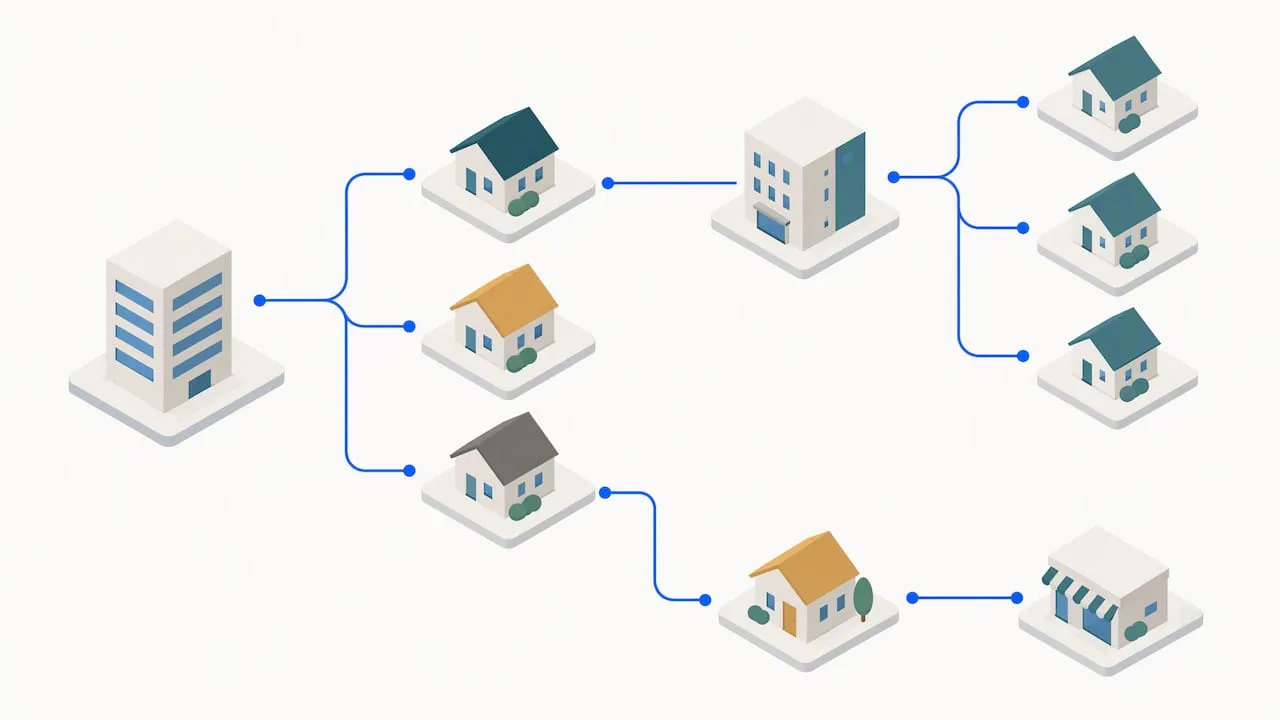
| Service address | Property or custom field | Migrate, check multi-property owners |
| Estimate | Opportunity or deal | Migrate open ones, archive closed |
| Completed job | Job or note history | Reference only, or migrate last 2 to 3 years |
| Lead source | Source field | Standardize values |
Then map each field: source name, destination name, type, required or not, and any change needed. Picklist values need a translation table. If the old system says “Emergency” and “Same Day” and the new one offers “Urgent”, write down which maps to which.
Rework’s guidance on order is worth following: import companies before contacts, and test records with multiple relationships specifically. In a trades business, the awkward cases are the landlord who owns six properties, the property manager with dozens of tenants and the homeowner who also runs a small business. Pick a handful of these and trace them through by hand.
Finish the mapping document with an owner and a sign-off line. If a person has to put their name beside “mapping approved,” mapping gets reviewed.
Step 5: Configure the new CRM before any data lands
Setting up the destination comes before the import, not after it. Pipelines, user roles, custom fields, tags, calendars, templates and integrations should all exist before production data arrives. Salesforce’s guidance says the same: configure pipelines, permissions, automations and integrations before importing.
A contractor-friendly setup list:
- A pipeline that reflects how you sell: new lead, contacted, estimate scheduled, estimate sent, won, lost
- User roles that limit what technicians, dispatchers and sales staff can see or change
- Custom fields only for data you will actually use
- Text and email templates for confirmations, estimate follow-up and review requests
- Phone numbers, missed-call text-back and form connections ready but not yet switched over
This is also where you decide how new leads will arrive. If your calls, chat and forms should all land in one inbox, set that up now. Our missed-call text-back and CRM setup is built around exactly that arrangement for trades businesses.
Step 6: Choose a migration method and test it
You have roughly three options: a native import tool, a connector or middleware product, or a hand-built script or manual re-entry. For a few thousand records and a clean export, a CSV import is usually enough. For several systems feeding one, connectors save time. For tiny lists, careful manual entry can even be the cleanest option.
Whichever you pick, test before you commit. Salesforce recommends incremental sample imports to check records, workflows, reports, dashboards and relationships ahead of launch. HubSpot’s import checklist similarly ends its preparation with a test import after cleaning and mapping.
A sample test for a trades company:
- Import 50 to 100 records that include your difficult cases: multi-property owners, open estimates, records with files attached.
- Compare counts: records exported against records received.
- Spot check 20 records field by field against the source.
- Trigger each automation once on a real test record, from estimate follow-up to review request.
- Submit your website form and call your tracked number. Confirm the lead lands where it should and the right person is alerted.
- Fix what broke, then rerun the sample before the full load.
Step 7: Plan the cutover
Cutover is the moment the new CRM becomes the system of record. NextPage IT describes it as a planned operational event: freeze the source, run a final delta migration, switch integrations, validate and communicate. Spell out each of those for your own shop.
Pick the window. Late evening on a slower day beats a Monday morning. In HVAC and roofing, avoid the first heat wave, the first cold snap and the storm week after a big weather event, when call volume spikes and a mistake costs the most.
Freeze data entry. Tell the team the exact hour the old system stops accepting changes. Anything entered after the final export is the delta, and someone needs to own bringing it across.
Run the final export and import. Use the order from your mapping: companies, contacts, properties, then estimates and jobs.
Switch integrations in a set order.
- Phone numbers and missed-call text-back
- Website forms and chat
- Booking and scheduling links
- Review request triggers
- Accounting or invoicing connections
Then test each one with a real action. Place a call and let it ring out, submit a form, mark a job complete.
Tell people. Staff need to know where to log in and what changed. Customers usually need nothing, unless an appointment link or texting number changes.
Write the rollback plan before you need it
A rollback plan is a decision made while calm. A solid one sets failure triggers, the decision-maker, the time window and the communication path. VantagePoint’s checklist likewise calls for a rollback plan with specific triggers and procedures as part of data preparation.
Example triggers for a small contractor:
- Record counts differ from the source by more than your agreed tolerance
- Inbound calls or form submissions do not create a lead record
- Estimates fail to link to the right customer
- The office cannot book an appointment for more than an hour
Name one person who makes the call, set a deadline (for example, two hours after cutover), and keep the old system read-only and intact until you are confident. Do not cancel the old subscription the day you cut over.
Step 8: Train the team and watch lead follow-up
A technically perfect migration still fails if the office reverts to old habits. LeanScale suggests phased enablement: business owners validate the system first, a small pilot group runs real workflows, and everyone else comes on after end-to-end testing. It also recommends testing every automation once against a real record and every integration end-to-end, then handing users a precise day-to-day verification checklist.
In a contracting business, that translates to:
- Owner and office manager check dashboards, pipelines and reports first.
- One dispatcher or estimator runs a week of real leads through the new system.
- Everyone else joins after the pilot, with a one-page cheat sheet: how to find a customer, log a call, send an estimate, mark a job complete.
For the first two weeks, check these daily:
- Did every call, form and chat from yesterday create a lead?
- Were new leads contacted within your target time?
- Did estimates sent in the past three days get a follow-up?
- Did completed jobs trigger a review request?
- Are there new duplicate records?
The SBA’s note that small businesses often struggle with CRM adoption because they see systems as too complex or costly is a useful reminder: a purpose-built small business CRM can reduce that overhead. Keep the daily process short enough that people will do it.
Match the plan to your real capacity
The best plan is one your team can finish. A six-person plumbing shop does not need a 40-step enterprise runbook, and it should not try to move ten years of history in one weekend. Decide how much of the project fits around field work, and phase the rest.
If your day-to-day pain is in the field rather than the office, such as quoting, job photos and invoicing, it helps to look at field service automation alongside the CRM move, so you know which tool owns which job record before you start mapping.
Where we come in
We build and run the lead-capture side of this for contractors in Rhode Island and Massachusetts: websites that book jobs, local SEO, missed-call text-back, AI call handling, chat and automated review requests. If you are moving CRMs and want the website forms, phone lines and follow-up wired in cleanly the first time, see our Foundation, Growth and Scale plans. Foundation is $597 per month, Growth is $1,297 per month and Scale is $2,497 per month. Our website services cover the form and booking side of the connection.
Our perspective: protect the lead path first
Most migration advice starts with data. We start with the phone. In our work with trades businesses, the cost of a botched move rarely shows up as a corrupted contact record. It shows up as a homeowner with a burst pipe who called, got no answer and no text back, and called the next company on the list.
So we sequence differently from generic checklists. Lead capture first: calls, forms, chat and texts must reach a live inbox at every moment. Follow-up second: estimates and past customers get contacted automatically so nobody depends on memory. Reporting third. Historical detail comes last, because a customer from 2016 is rarely urgent.
We also recommend running the old and new setups side by side for a short overlap, even though it costs a little more. A week of duplicate subscriptions is cheap compared with a week of lost calls. And we would rather see a contractor migrate fewer records, cleanly, than every record, messily.
— Tyson
A realistic timeline for a small contractor
Timelines vary with data volume and how many tools connect to the CRM, so treat this as a starting shape rather than a promise.
| Phase | What happens | Typical effort |
|---|---|---|
| Planning | Goals, scope, owners, inventory | A few days of part-time work |
| Cleanup | Backup, dedupe, standardize, archive | Often the longest phase |
| Mapping and setup | Object and field maps, pipelines, permissions, templates | Several days |
| Testing | Sample import, automation and integration tests | A few days, plus fixes |
| Cutover | Freeze, final import, switch integrations, validate | One evening to a day |
| Stabilization | Daily checks, pilot feedback, rollback window | Two weeks or more |
Because implementation often runs well past the first estimate, as the SBA notes, leave slack. Do not schedule cutover right before your busiest stretch.
FAQ
What should a CRM migration plan include?
It should include your goals and success measures, what is in and out of scope, a data inventory, a cleanup plan, field and object mappings, the migration method, a test plan, a cutover window with a data freeze, rollback triggers and a training plan. Name an owner for each. If you can hand the document to a new office manager and they could run the move, it is detailed enough.
How long does a CRM migration take?
For a small contracting business, expect a few weeks of part-time effort, with cleanup often taking the longest. The SBA warns that implementation commonly takes two to three times longer than first estimated, so build in buffer. The actual cutover can be done in an evening if testing was thorough.
How do I avoid losing leads during the switch?
Keep phone, form and chat capture live throughout. Set up the new inbound routing before cutover, switch integrations one at a time and test each with a real call or submission. Keep the old system read-only for a rollback period, and check daily that yesterday’s leads were created and contacted.
Should I migrate all my old data?
Usually not. Move active customers, open estimates and recent job history, then archive the rest in a separate file. Old, incomplete and duplicate records add clutter and can trigger follow-ups to people who no longer need you. Archived data can be restored if you need it.
Sources
- 3 Biggest Problems Implementing a CRM System, and What to Do About Them (U.S. Small Business Administration)
- Checklist for Choosing Business Software (U.S. Small Business Administration)
- CRM Migration: Tips for a Smooth Transition (Salesforce)
- Empower Your Organization With Accurate, Actionable Data (Salesforce)
- CRM Data Migration Best Practices: Checklist (VantagePoint)
- CRM Data Migration Import Checklist (HubSpot)
- Mapping Fields Between Legacy and New Systems (Rework)
- CRM Migration Checklist: Mapping, Cleanup, Cutover (NextPage IT)
- CRM Migration Runbook: 41-Step Checklist (SalesCrew)
- CRM Migration Playbook (LeanScale)